👋 Welcome! Use code CAMUNLOCKS at checkout to unlock 5% off your first order!
Pure DMA
Requirements
Summary
Pure DMA - War Thunder
Cheat Features
-
Visuals
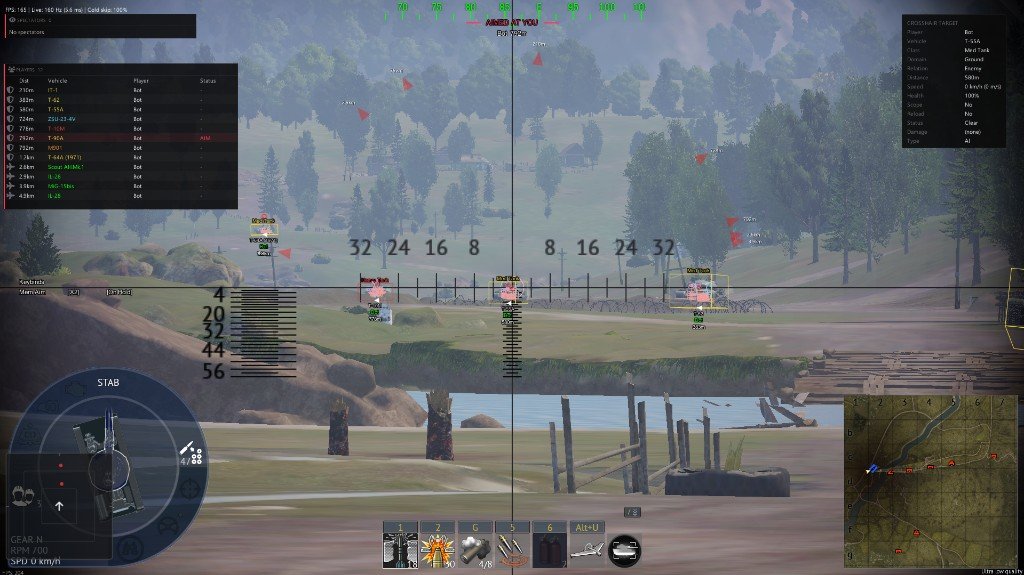
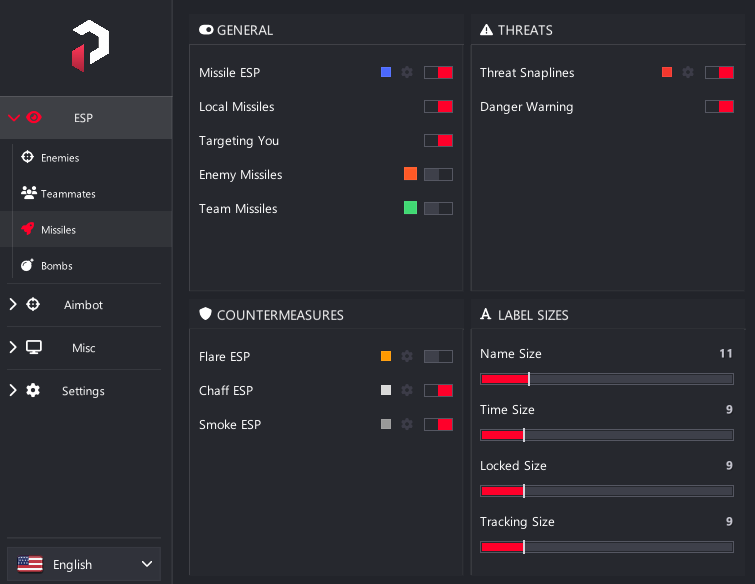
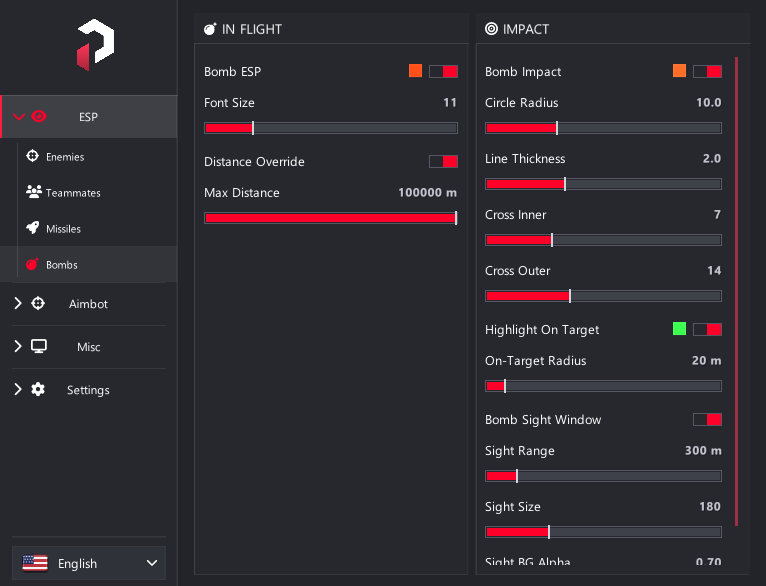
Ground, air, projectile, naval ESP, out of FOV arrows, class colors, and radar.
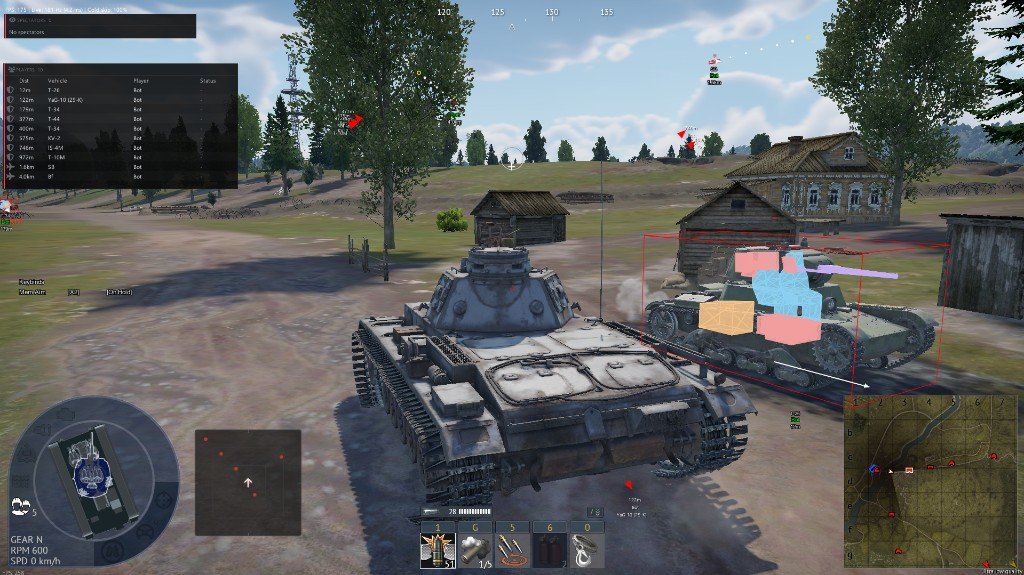
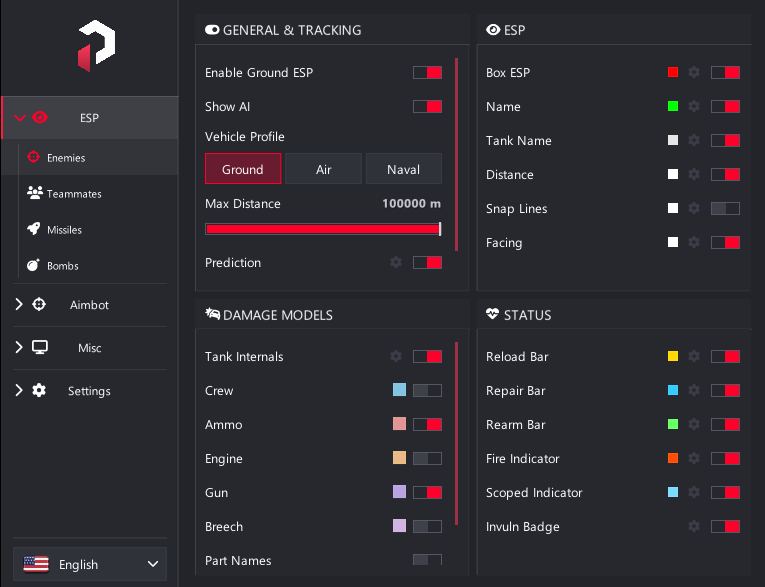
- Enable ground ESP
- Box around enemies — style, thickness, color, max distance
- Name
- Tank name
- Distance
- Reload bar
- Facing
- Snap lines
- Internals — crew, engine, ammo, per-part colors
- Damaged parts
- Repair bar
- Rearm bar
- Fire indicator
- Scoped indicator
- Gun impact
- Prediction indicator
- Invulnerability badge
- Last seen
- Danger warning
- Enable air ESP
- Box — style, thickness, color, max distance
- Name
- Distance
- Reload bar
- Snap lines
- Fire indicator
- Scoped indicator
- Gun impact
- Prediction indicator
- Invulnerability badge
- Last seen
- Danger warning
- Show incoming shells and missiles on screen
- Show outgoing shells and missiles on screen
- Distance labels
- Styling options
- Enable naval ESP
- Box around ships
- Name
- Distance
- Related naval ESP options
- On-screen keybinds — position and color
- Player list
- Streamer mode
- Auto team detect
- Aimed at you — color options
- Spectator list
- Crosshair inspect — draggable panel with crosshair target info
- Arrows pointing to enemies outside your view
- Separate toggles for Tanks/Ground and Planes/Air
- Arrow size
- Arrow distance
- Arrow color
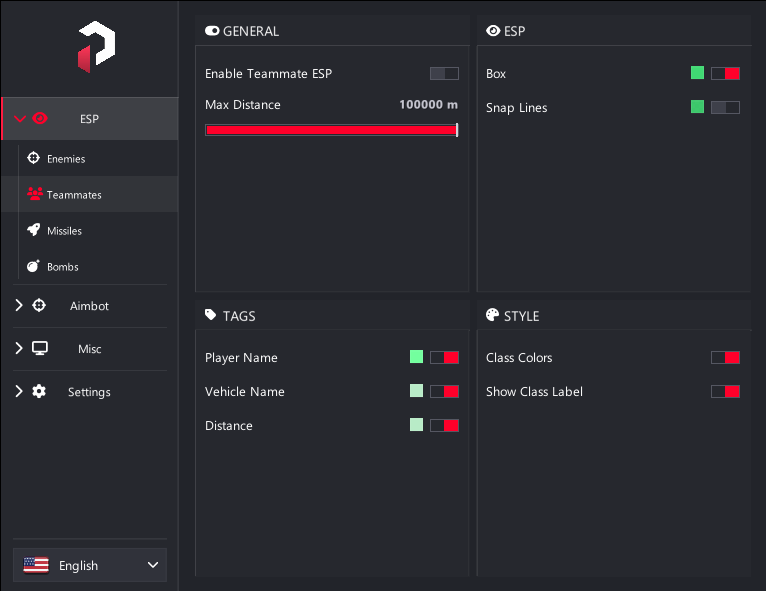
- Enable per-vehicle-class colors
- Color pickers for each class — heavy, medium, SPAA, etc.
- Show class label on ESP
- Color-only without text
- Tint box or name when box is off
- Enable radar mini-map
- Range
- Size on screen
- Background transparency
- Circle vs square shape
- Show projectiles on radar
-
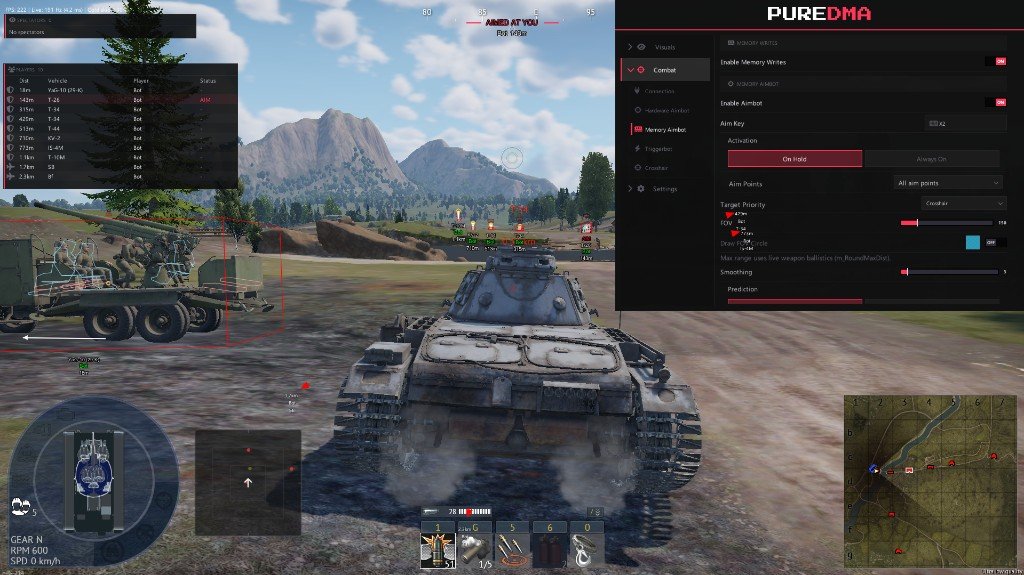
Combat
Connection hardware, hardware aimbot, memory aimbot, triggerbot, and crosshair overlay.
- Device type — Off, Kmbox USB, Kmbox Net, Macku, Macku Controller
- Auto connect on startup
- COM port and baud rate for USB devices
- IP, port, and MAC for network Kmbox
- Connect, Disconnect, and Test
- Aimbot and triggerbot settings appear after device is connected
- Enable aimbot (Hardware)
- Aim key
- Activation — hold key or always on
- Aim points — center, crew, turret, engine, ammo
- Target priority — closest to crosshair, closest by distance, lowest HP
- FOV
- Draw FOV circle with color
- Show targeting
- Max range — uses live weapon range when available
- Smoothing
- Prediction — Advanced or Simple
- Simple prediction — bullet drop on/off, gravity scale
- Enable memory writes — master switch, must be on first
- Enable aimbot (Memory)
- Aim key
- Activation — hold key or always on
- Aim points — center, crew, turret, engine, ammo
- Target priority — closest to crosshair, closest by distance, lowest HP
- FOV
- Draw FOV circle with color
- Show targeting
- Max range — uses live weapon data when available
- Smoothing
- Prediction — Advanced or Simple
- Simple prediction — bullet drop on/off, gravity scale
- Moves your view angles in-game directly, independent from hardware aim
- Enable triggerbot
- Trigger key
- Activation — hold or always on
- Delay before firing
- FOV
- Draw FOV circle
- Max distance
- Aim points
- Target priority
- Show crosshair overlay
- Style — cross, dot, circle, etc.
- Size
- Thickness
- Gap
- Color
- Outline on/off
- Center dot
- Show when scoped or hide when aiming
-
Settings
Config profiles, keybinds, menu styling, overlay options, and DMA/input status.
- Save new config
- Load selected profile
- Overwrite current profile
- Delete profile — not Default
- Active profile name
- Browse saved profiles list
- Menu toggle key
- Debug overlay key
- Reinitialize ESP key
- Reinitialize ESP button — fresh read if match data looks stale
- High-contrast menu — easier to read on capture setups
- Accent color
- Rainbow accent
- Menu scale
- Transparent overlay
- One PC mode — click-through when menu is hidden
- VSync
- FPS counter
- Debug overlay
- Override screen resolution — for correct ESP placement
- Custom width and height when override is on
- Status cards for game connection
- Reading pipeline status
- Input status
- Hardware mouse status
- Informational only — shows whether things are connected and working